


Managing payroll
Correcting an approved payslip
Cancel the approval, correct, approve again; delete a draft created by mistake
An approved payslip can no longer be changed: its amounts are fixed and its entries are in the accounts. To correct a mistake (forgotten hours, wrongly entered bonus, wrong rate), you cancel the approval, correct the payslip that has become a draft again, then approve it again.
If you try to save or approve a payslip that is already approved, Plugin.ch shows: This payslip is approved: cancel the approval first.
Cancel the approval
- Open Invoices → Payroll, tab Monthly payroll, and choose the month with the ‹ › arrows in the banner.
- Click the employee's row to open their payslip.
- At the bottom of the panel, click Cancel approval, then confirm with OK.
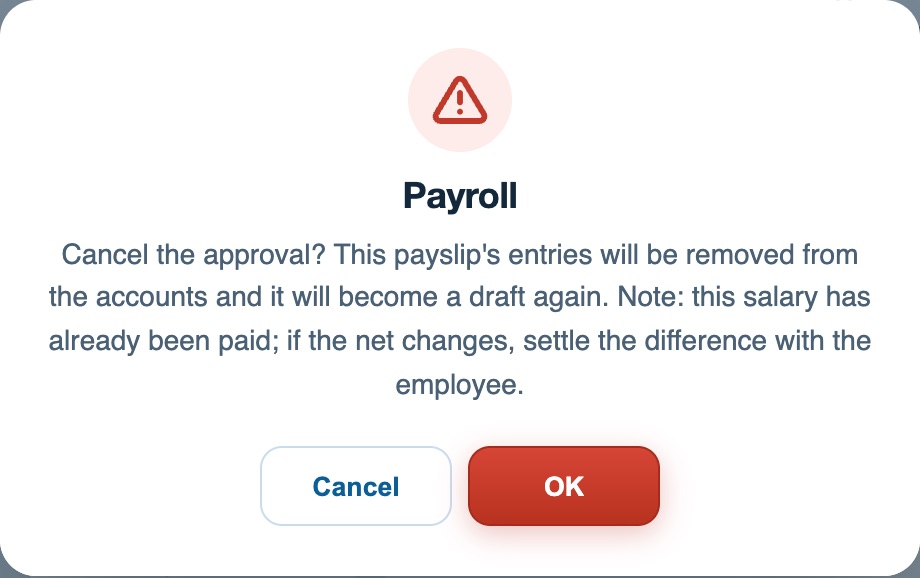
With accounting, the confirmation reminds you that the entries will be removed; for a salary already paid, it adds a warning.
What happens:
- the payslip's entries (voucher SAL… shown at the top of the payslip) are deleted from the journal;
- the payslip becomes a Draft again: you can change its lines and its payment date;
- as long as it stays a draft, it is counted neither in the salary certificate nor in the totals of the page Year & certificates.
The payslip keeps the employee record as it was then. The draft is recalculated with the record as it was at approval (salary, activity rate, insurance, children…), even if the record has changed since, for example after a pay rise. A corrected earlier month is therefore still calculated with the contract of the time. A box in the draft reminds you: This payslip was already approved: it is recalculated with the employee record as it was then (salary, rates, insurance), not the current one.
If the record at the time contained an error (wrong salary, forgotten child), click Apply the current record in this box, then confirm: the payslip is recalculated with today's record. Correct the employee record first, and only do this in that case.
Correct and approve again
Correct the payslip lines as for a normal payroll: the calculation updates as you type. Click Save to keep the draft, or click Approve and post.
On the new approval, Plugin.ch recalculates the payslip and posts its entries to the journal again, on the payment date, with the same voucher number as before.
The salary had already been paid
The confirmation reminds you: Note: this salary has already been paid; if the net changes, settle the difference with the employee.
- Paid through the bank statement: cancelling the approval does not affect the payment; its entry stays in the journal and the payslip becomes Paid again as soon as it is re-approved.
- Marked as paid manually: cancelling removes this mark. After the new approval, click Mark as paid.
If the net pay has changed, pay the balance to the employee (or recover the overpayment). When the payment came from the bank statement, the account Net salaries payable keeps the difference between the old and the new net pay: post this adjustment to this account to bring it back to zero.
Think about the following months
Each payslip takes into account the approved payslips of the previous months of the same year: unemployment insurance ceiling, catch-up of contributions on low earnings, cumulative AVS salary. Payslips of later months that are already approved are not recalculated automatically when you correct an earlier month.
- If the correction changes little (a bonus, a few hours), the following months generally remain correct.
- If it significantly changes the AVS salary, or if the employee is close to a ceiling or threshold, also cancel the approval of the following months and approve them again in order, from oldest to most recent.
As long as an earlier month is a draft, the drafts of the following months show the alert Previous months still in draft: their running totals do not include that month yet. So always approve the months in order.
When the financial year is closed
If the financial year of the payment date has already been closed with Close the year (general ledger, Profit and loss or Balance sheet tab), the entries can no longer change. Plugin.ch then refuses to cancel the approval and shows: The financial year for this date is closed: entries can no longer be changed.
In this case, carry the correction over to the payslip of a month whose financial year is open, for example by adding an adjustment line to the current month's payslip.
Deleting a draft created by mistake
Only a draft can be deleted. Open it, click Delete at the bottom left of the panel, then confirm with OK. To delete an approved payslip, cancel its approval first.

The buttons at the bottom of a draft payslip.
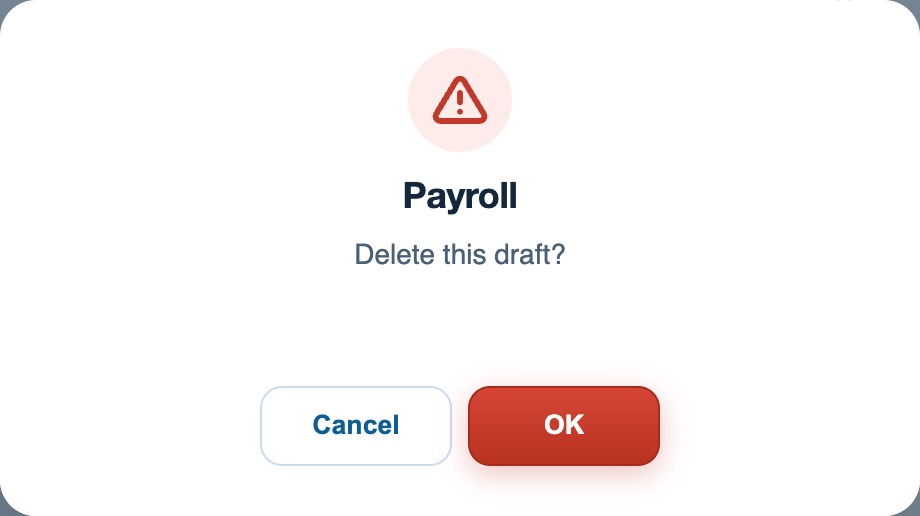
The lines entered in this draft are lost. If the employee is employed that month, their row stays in Monthly payroll without a payslip: you can create a new one with the button + (Create payslip) or with the button Prepare payslips, followed by the number of missing payslips.
On the page Year & certificates, the orange banner lists the payslips still in draft. Click a month to open that month's payroll, then approve the payslip or delete it if it was created by mistake.
Plugin.ch tutorial — Managing payroll